Keeping a website safe for your users comes down to two things: strong defenses on your side and clear signals for your visitors.
Visitors never see most of that work, only the result: pages that load without warnings. The steps below cost little and cover the attacks that hit small WordPress sites most often.

Start with HTTPS and updates
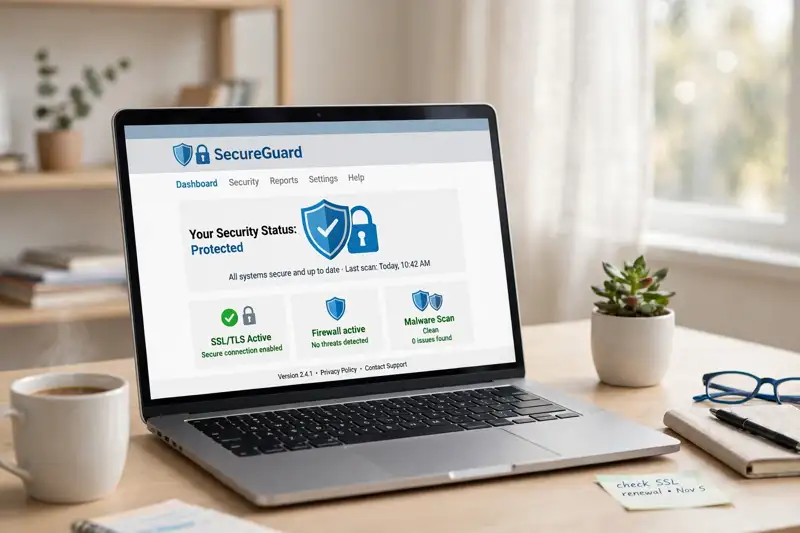
HTTPS encrypts the connection between a visitor’s browser and your server. Without it, browsers mark the site “Not Secure” and some visitors leave before the page loads. A certificate is free in many cases through Let’s Encrypt, and most hosts switch it on with one click, then set the WordPress address to the HTTPS version so every page and login uses it.
Updates matter just as much, because when WordPress fixes a security hole, the details needed to exploit it are almost certainly public. Patchstack’s State of WordPress Security in 2026 counted 11,334 new vulnerabilities in 2025, and 91% of them were in plugins, while core WordPress had only six.
Plugins carry the risk, so update them, delete the ones you stopped using, and check when each was last updated, since a plugin untouched for years may never get a fix. Back up before you update and check the site after.
Turn on automatic updates for minor releases and for plugins you trust. New installs update themselves by default.
Lock down who can sign in
Most break-ins start at the login screen, so use a strong password: long, unique to that one account, and built by a password manager rather than typed from memory. Never reuse the password you use for email, because email resets every other account.
WordPress’s hardening guidance warns against passwords built from your name, your username, your company or your site name. It also warns against anything short, or made only of numbers or only of letters.
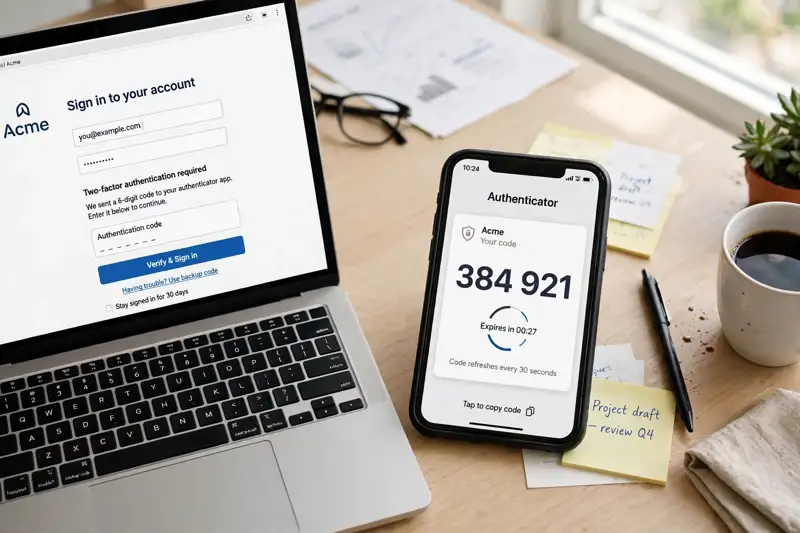
Add a second step: WordPress recommends two-factor sign-in for every administrator, and since core does not include it, you add it with a plugin, so the code from your phone becomes the second key and a stolen password alone stops working.
Do not use “admin” as a username. It is one of the first names attackers try. Use SFTP instead of FTP too, so your password never travels unencrypted.
Keep the admin list short. WordPress has five standard roles, and an Editor can run the content side of a site without installing plugins or changing settings.
Give each person the lowest role that does the job, give everyone their own login, and remove accounts when people leave. An admin you did not create is the clearest sign someone got in.
Backups and a firewall do the quiet work
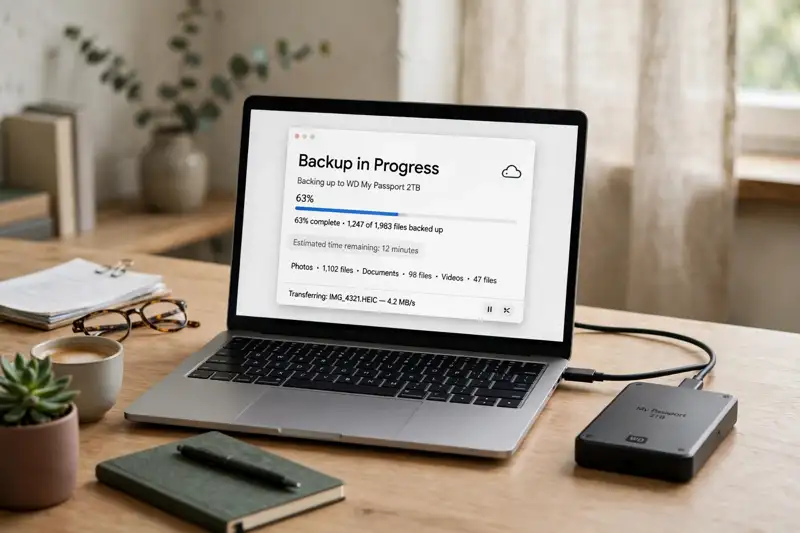
A backup is for recovery, and it has two parts, the database and the files, since you need both to restore a typical site.
Keep several recent copies away from the web server and practice a restore now and then, because a backup you never tested is only a guess. Daily backups fit a site that changes daily, while a quiet site can run weekly ones.
A firewall sits in front of the site and filters traffic before it reaches WordPress. Security plugins such as Wordfence and Sucuri add malware scanning and login protection on top of that. Pick one well-known plugin and keep it updated. SeedProd’s guide to securing a WordPress site covers the same steps in one place, and Hostinger’s WordPress security checklist walks through the same layers for hosts that bundle them.
How your visitors can tell something is wrong
Your visitors judge safety with their eyes. A safe site shows the padlock in the address bar and loads without warnings, while a hacked site behaves differently.
The browser may show a full red page that says “Deceptive site ahead”, or Google may put “This site may be hacked” under the listing in search results. Pages may redirect visitors to spam or gambling sites, often only on phones, and attackers hide these redirects from you while you are logged in, so the site can look fine to you and broken to everyone else.
Content changes are another giveaway: strange links appear, or a search for site:yourdomain.com turns up pages you never made, sometimes in a language you do not use. Antivirus software may block the site outright.
If a visitor reports any of this, believe them fast. They see the hacked version. You see the clean admin view.
Search result pages keep changing, and our Google AI Overview update guide explains what readers see above the normal results now. A hacked site can also lose rankings, as our Google algorithm update guide explains.
That is why a contact route matters: a WhatsApp chatbot on the site gives visitors somewhere to report a problem in seconds, and our WhatsApp AI chatbot guide explains how one works.
If the site gets hacked, work through this order
Start by taking the site offline or putting it in maintenance mode, especially if visitors are being sent to spam or malware. Your host can help tell a hack from an outage.
Then lock everyone out: change every password on the site, WordPress logins, the hosting panel and SFTP, plus the database, and delete any admin user you do not recognize. Back up the hacked site before you clean anything, so you have a copy to refer to.
Then clean it up. Restore a backup from before the hack if you have one; if not, replace the wp-admin and wp-includes folders with fresh copies of the same WordPress version and work carefully through wp-content.
Update everything, then change the passwords again now that the site is clean. Work out how they got in and close that route, or the same attack comes back.
Finally, check Google’s Security issues report in Search Console, which lists what Google found, with sample URLs. When every issue is fixed across the whole site, select Request Review and describe what you found and what you did.
Reviews take about a day for phishing. Malware takes a few days. Hacked spam can take several weeks. Google removes the warnings within 72 hours once a review passes.
A ten-minute weekly check
Security holds when it becomes routine. Once a week, open Dashboard, Updates and install what is waiting, then glance at the Users list and check the Security Issues report in Search Console for a green check mark.
Once a month, test a backup restore on a staging copy, and let an AI assistant turn this routine into a written checklist. Our best AI tools comparison puts the options side by side, and the Gemini vs ChatGPT comparison helps pick one. If writing the incident notes feels slow, our ChatGPT new features guide shows what the chatbot can draft for you.
None of this makes a site unhackable. WordPress’s own handbook says security means reducing risk, not removing it.
Strong defenses give an attacker almost nothing easy, and backups give you a fast way back when something slips through. Your visitors never see the work. They see a site that loads and stays clean.
Frequently asked questions about keeping a website safe
Is a free SSL certificate enough?
Yes, it is. A free certificate from Let’s Encrypt encrypts the connection the same way a paid one does; paid certificates add company validation or a warranty, not stronger encryption. What matters is that every page loads over HTTPS.
Do I need a security plugin if my host already has a firewall?
Both help, and they catch different things. A host firewall filters traffic before it arrives, while a plugin scans files, watches logins and spots changes on the site itself. One layer is good. Two layers are better.
How often should I back up my site?
As often as it changes. A site with daily posts needs daily backups. A site that rarely changes can run weekly ones. Keep several copies off the server and test a restore, or the backup is only a hope.
How do I know if my site was hacked?
Check the Security Issues report in Search Console, search Google for site:yourdomain.com and look for pages you never made, and check the Users list for admins you did not create. Redirects and browser warnings are the loudest signs.
What does “This site may be hacked” mean in Google search results?
Google detected hacked content on the site and added the label to protect searchers. Fix every issue, then request a review in Search Console. Google removes the label once the review passes.
Can a hacked site be fixed without losing content?
Often yes. Restore a clean backup from before the hack, or clean the infection and replace the core WordPress files with fresh copies. If you have no clean backup, cleaning takes longer, which is why backups matter before anything goes wrong.